Admin Portal
Admin Portal
QVOICE Platform Admin portal is used to configure the QVOICE Platform Cloud Phone System.
Admin Portal Login
Administrator is able to login multiple ways into the QVOICE Platform Portal
- Login using an existing Google account
- Receive a Onboarding Email with a Magic link that can be used to one-click login
- Use pre-configured credentials
Navigate to https://qvoice.net/portal
Google Social Login
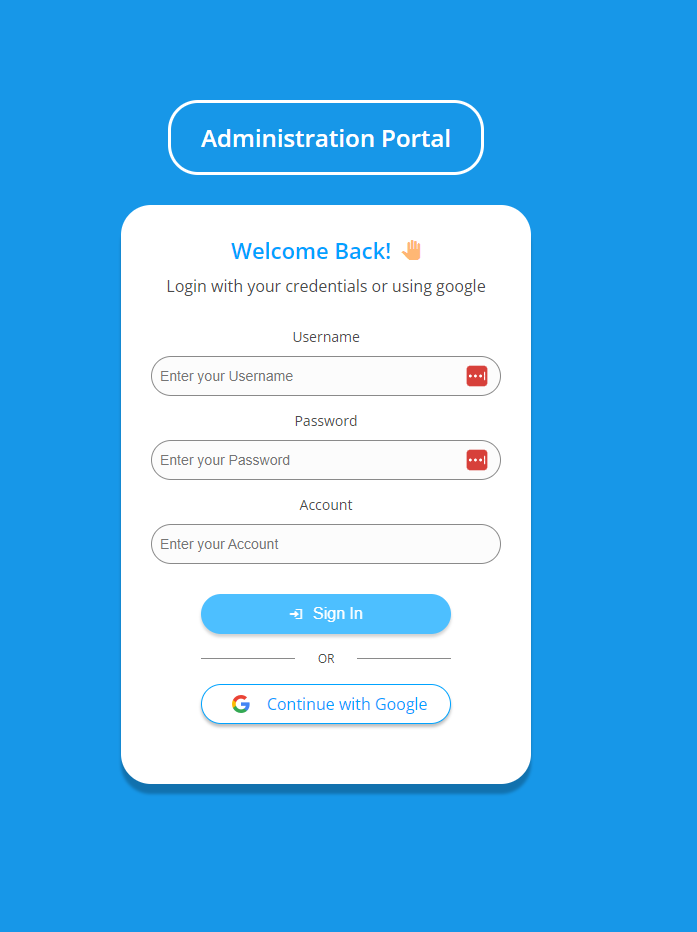
If your administrator email is hosted by Google, you are able to use your existing Google account to log into the QVOICE Platform platform.
Click on “Continue with Google” button and select your Google user account from the google login popup window.
Credentials Login
Navigate to https://qvoice.net/portal
- Enter your username, usually email
- Enter your account name
- Enter your password
Admin Portal Initial Login Page
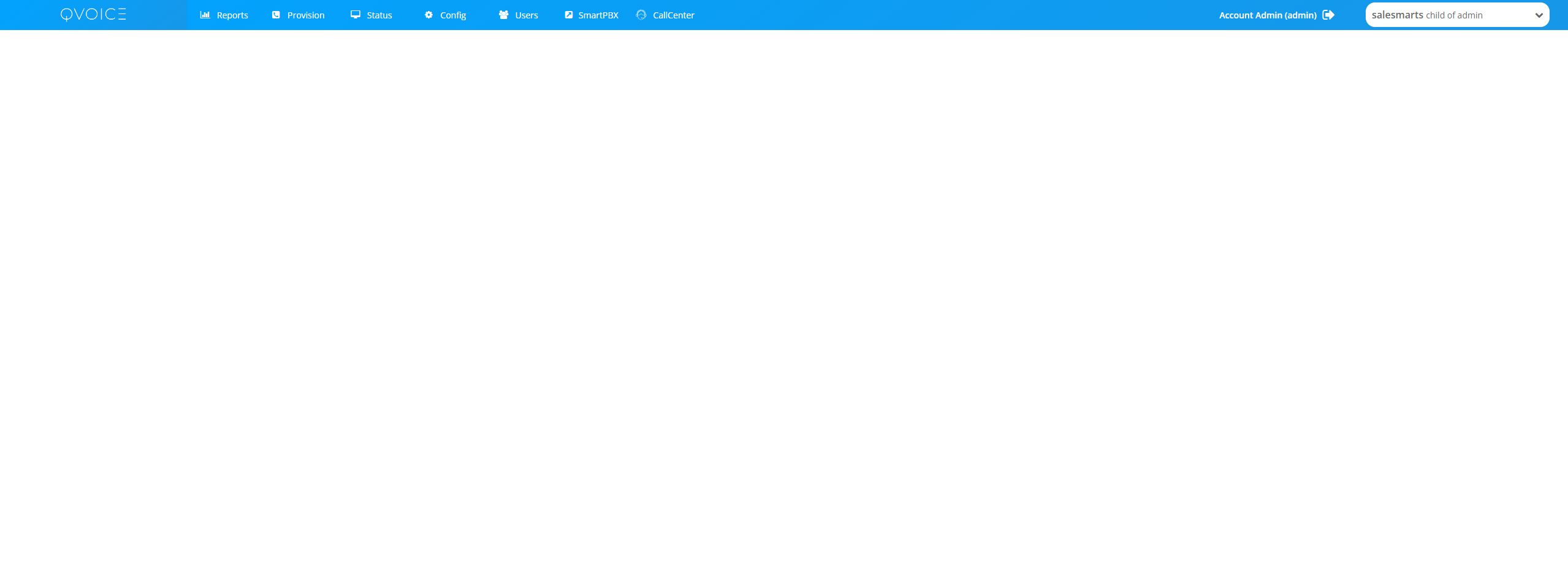
On initial login the Administrator will be presented with an empty page with number of options in the top bar
| Reports | Admin can view number of QVOICE Platform reports such as Call Records, User Activity, Inbound and Outbound Calls, Billing Usage etc |
| Provision | Admin can auto provision and configure Desktop IP Phones such as Yealink, Polycom, Cisco, Fanvil, and others |
| Status | Admin can view real time status of the Phone System account: Currently Active Calls, Mobile devices used by users, user device registrations |
| Config | Admin can configure their tenant account system config including: SIP Trunks, Numbers, CallerID, Storage, Recording |
| Users | Admin can manage (create, edit, disable, delete) users, assign tags, invite users to the service, login as a user |
| SmartPBX | Admin can configure Phone System features such as assign number to account, time of day routing, inbound call handling, voicemails |
| Call Center | Admin can configure Call Center Inbound Queues and Outbound Campaigns including Call Center reports and analytics |
|
Admin Portal Reports
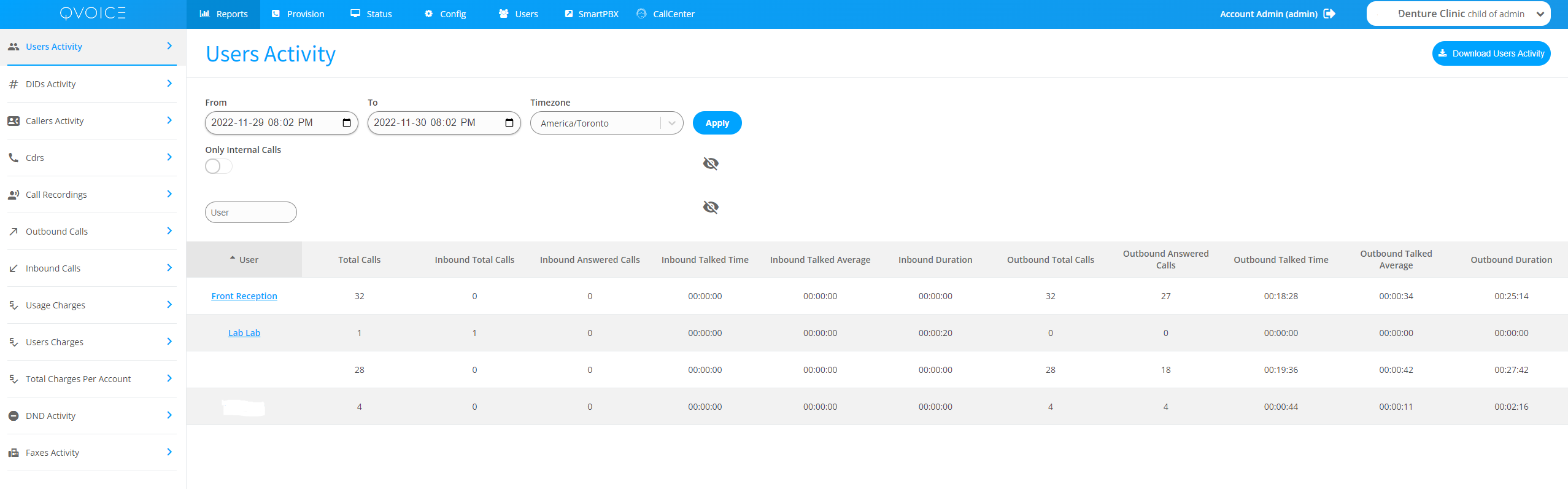
A set of reports used to review call logs, user activity, phone number activity, call recordings and more.
User Activity
A quick way to measure or review user activity and productivity: who is making most calls overall vs who is taking most incoming calls.
SmartPBX: Phone System App
To navigate to the SmartPBX app, click on the SmartPBX icon on the top bar of the Admin portal.
SmartPBX is where Administrator is able to configure the Cloud Phone Systems features, including phone number assignments, IVR Menus and Greetings, Call Groups, Business house, Music on hold and more.
The default view in the SmartPBX app is the Dashboard view which displays the overview of the organizational structure on the tenant Cloud Phone System.
SmartPBX Left Side Menus
| Numbers | Admin can assign one or more numbers to the tenant account Main Callflow. When the number gets called by a customer, the call will be routed to this account. |
| Users | Assign extension or a number to user, edit user phone system features |
| Groups | Create ring groups and assign extension or a phone number to a ring group. Ring groups are used to dial multiple users at the same time. For example users belonging to a Sales or Support group. |
| Main Number | A step by step configuration of the phone system inbound call controls. A set of options to configure working hours, holidays, call routing to a IVR, User or Voicemail |
| Call Logs | Call logs for the tenant |
| Devices | Configure, manage user devices. A user can have one or more devices such as Office Phone, Home phone, Mobile phone, Desktop phone. |
| Voicemail Box | Configure, manage user's voicemail boxes. Configure pin codes, upload greetings mp3 files. |
| Feature Codes | Configure standard phone feature codes such as * 98 for voicemail |
SmartPBX Top Bar Menus
| Dashboard | A Phone System overview including number of users, main configured phone number etc. |
| Caller ID | A Phone System Callerid is a number that is presented when the a User dials an external number. Eg: My company name and a phone number that is used to reach the company. |
| Hold Music | Upload a music mp3 file that will be used to play music to a customer when they are put on hold. |
| Hours | Configure the hours of operation, for example between 9am and 5pm route an incoming call to a receptionist or a Call Center Sales Queue, otherwise send the call to a voicemail. |